
Webflow Redesign Backup Checklist: Export Static Pages Before You Change Anything
A practical Webflow redesign backup checklist: export static pages, media, and CMS routes, then test the copy before your next launch.
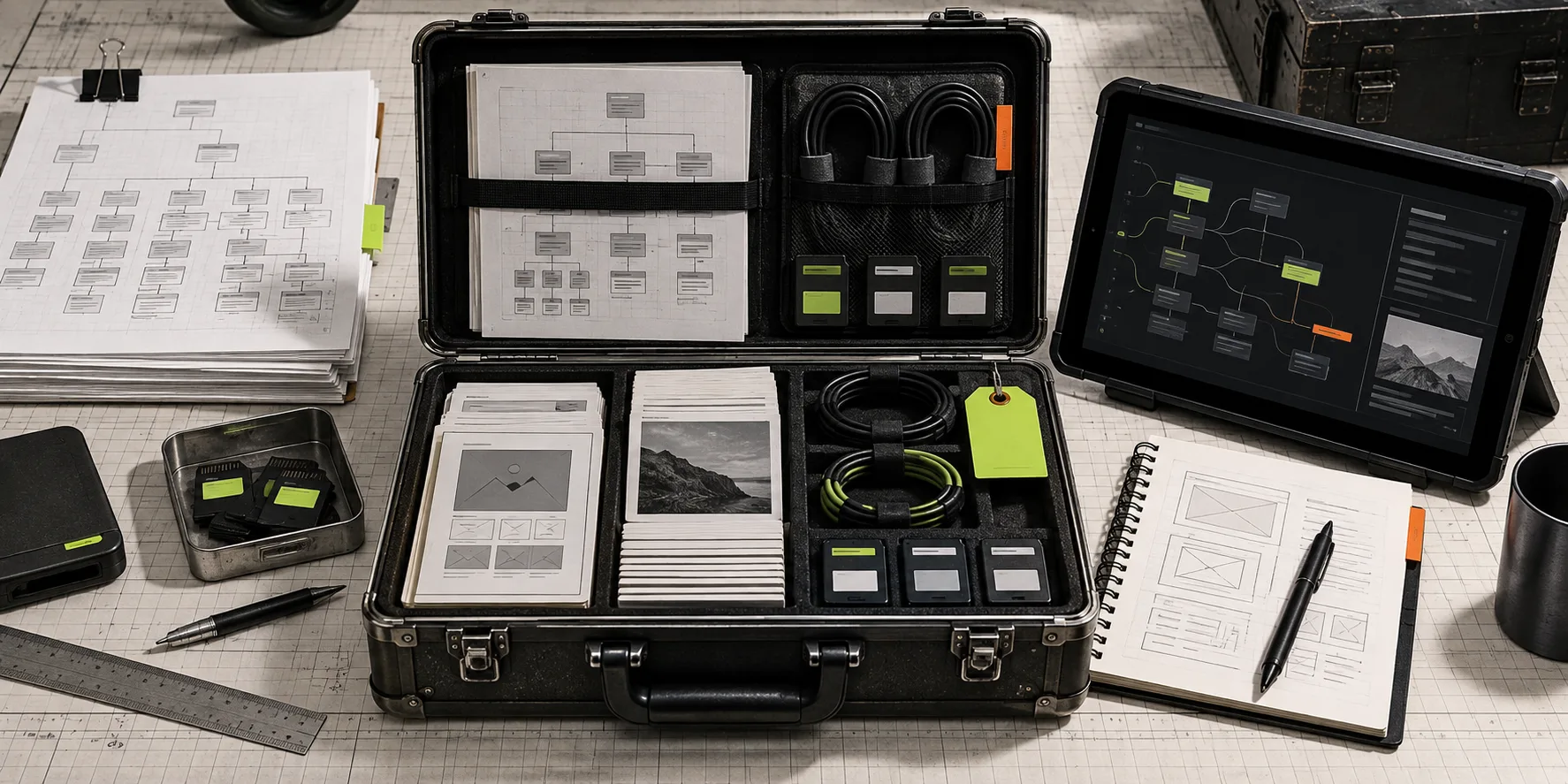
Your Webflow redesign is most likely to break in the places nobody put on the moodboard: an old CMS route, a lazy-loaded image, an abandoned redirect that still brings in leads, or a script wired to a form. Before changing the design, make a working static copy of the site you actually have. It is the fastest way to preserve a rollback point, hand a clean reference to a developer, and see what the new build must keep.
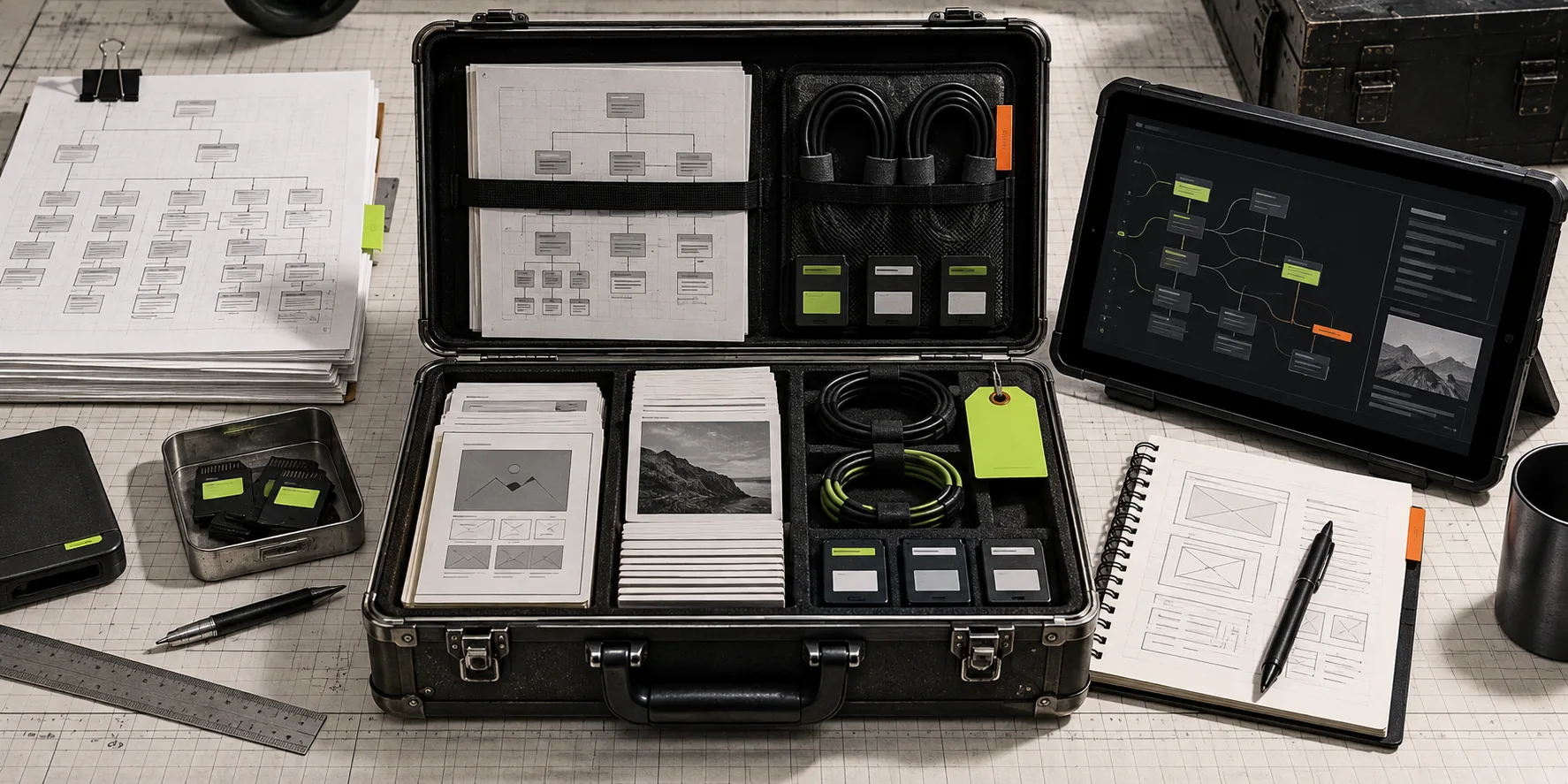
The backup is not a screenshot folder
A browser bookmark and a ZIP of random image files are not enough. A useful Webflow redesign backup needs the pages visitors can reach, the CSS and JavaScript that make them work, fonts and media, and the routes created by your CMS. You also need a record of what should happen after the redesign: forms, metadata, canonical URLs, redirects, and responsive behavior.
That is why a generic downloader can be frustrating with a modern site builder. It may capture one page while missing dynamic routes, assets requested later by the browser, or interactions that only appear after the page loads. Use a platform-aware exporter instead. ExFlow’s Webflow exporter is designed to turn a published Webflow site into static HTML, CSS, JavaScript, images, and CMS pages you can download as a ZIP or send to Git, S3, FTP, or managed static hosting.
A Webflow redesign backup checklist
Treat this as a short field exercise. The aim is not to perfect the old site; it is to preserve enough evidence that the new site does not accidentally delete useful work.
1. Inventory the routes worth saving
Start with a list of your important URLs: home, services, pricing, contact, legal pages, and a few high-value CMS items such as blog posts, case studies, or locations. Add any campaign landing pages that still receive traffic. This list becomes your post-redesign smoke test.
If your redesign is high risk, make the backup before the first layout change—not the afternoon before launch. How I Put a Webflow Site in Git Before a High-Risk Launch is a useful companion when you want the backup to become a versioned handoff rather than a one-off archive.

2. Export the published site, not an unfinished draft
Enter the published site URL in ExFlow and configure the export for the pages you need. The practical target is a static package containing the page files plus stylesheets, scripts, images, media, and CMS-derived pages. If your host expects explicit page files, enable .html extensions where appropriate.
Keep the original output untouched. Give it a date and store it as the known-good reference. Then make a second working copy for any experiments. This small separation prevents a surprisingly common mistake: editing the only rollback artifact while trying to prepare the redesign.
For a more detailed pre-redesign perspective, see How to Export a Webflow Site Before a Redesign.
3. Check the assets Webflow visitors actually use
Open the exported site locally or on a private static preview. Click through the route inventory and check: images, videos, fonts, navigation, internal links, page titles, descriptions, forms, scripts, interactions, and the small-screen layouts that often expose missing CSS. Do not assume a green export status means every browser request succeeded.
Pay special attention to CMS templates. Test several entries, including an old one with unusual formatting and a recent one with a large image. That gives you a better signal than checking a single perfect-looking page. If your site is content-heavy, How I Build a Webflow Static Mirror Before a Redesign shows why the mirror should be treated as a reviewable deployment, not just a download.

4. Choose the backup’s job before choosing hosting
A ZIP is enough for an offline archive or client handoff. Syncing to Git is better when the redesign team needs a reviewable history. S3 or FTP can suit an existing infrastructure, while a static host is often simpler for a private staging copy. ExFlow can deploy or sync the exported output to Git, S3, FTP, or ExFlow Hosting, so the export does not need to become a manual file-moving exercise.
The decision is less about the trendiest host and more about recovery time. Ask one direct question: if the redesign is rolled back tomorrow, can the team find this copy and put it online without rebuilding it?
5. Run a last, boring QA pass
Before signing off, compare the static copy with the live site on desktop and mobile. Check the URL list, inspect image-heavy pages, submit a test form only where it is safe to do so, and confirm that redirects and metadata are documented for the new build. Capture any intentional differences so nobody later mistakes them for regressions.
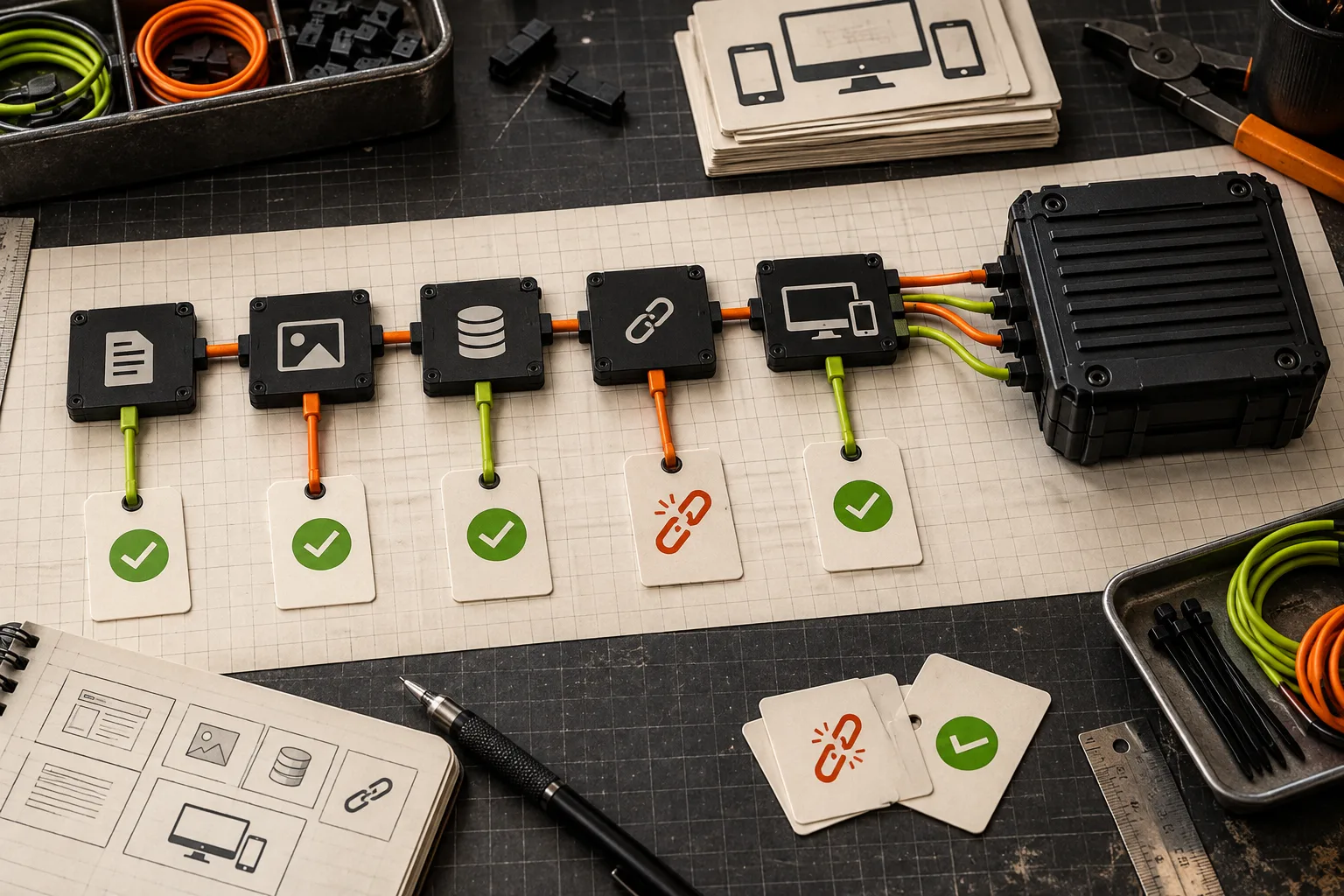
A static copy will not recreate every server-side feature, so flag integrations that need their own migration plan. That caveat is a feature of the exercise: it turns hidden dependencies into a visible launch checklist. For the full export-and-cutover sequence, Webflow Static Site Cutover: My Export, Deploy, and QA Runbook is worth keeping beside the backup.
Make the rollback point before the redesign gets interesting
The best time to test your Webflow exit path is while you still like the current site. Export a static copy, validate a short route list, and store it somewhere the team can actually retrieve. Start with ExFlow’s Webflow exporter, then make that archive the first item in your redesign brief.
ExFlow also has dedicated exporters for Squarespace and Framer, but keep this backup platform-specific: Webflow’s routes, interactions, and CMS content deserve their own check.