
When Shopify Variant Bulk Edits Should Be Their Own Task
A practical guide to separating product-level changes from variant-level work so Shopify bulk updates stay reviewable and reversible.

A Shopify product can look like one catalog record until you open its variants. Then one product becomes a collection of sizes, colors, SKUs, prices, inventory states, weights, barcodes, and option values. That is why a bulk update that looks harmless at the product level can become risky when it crosses into variants.

My rule is simple: if the update changes a field that may differ by size, color, or SKU, it deserves its own variant task. Ultimator Bulk Editor supports both product and variant editing, which is powerful precisely because those two levels should not be casually mixed.
Start by naming the level of the change
Before you build a filter, ask whether the field belongs to the product or to a variant.
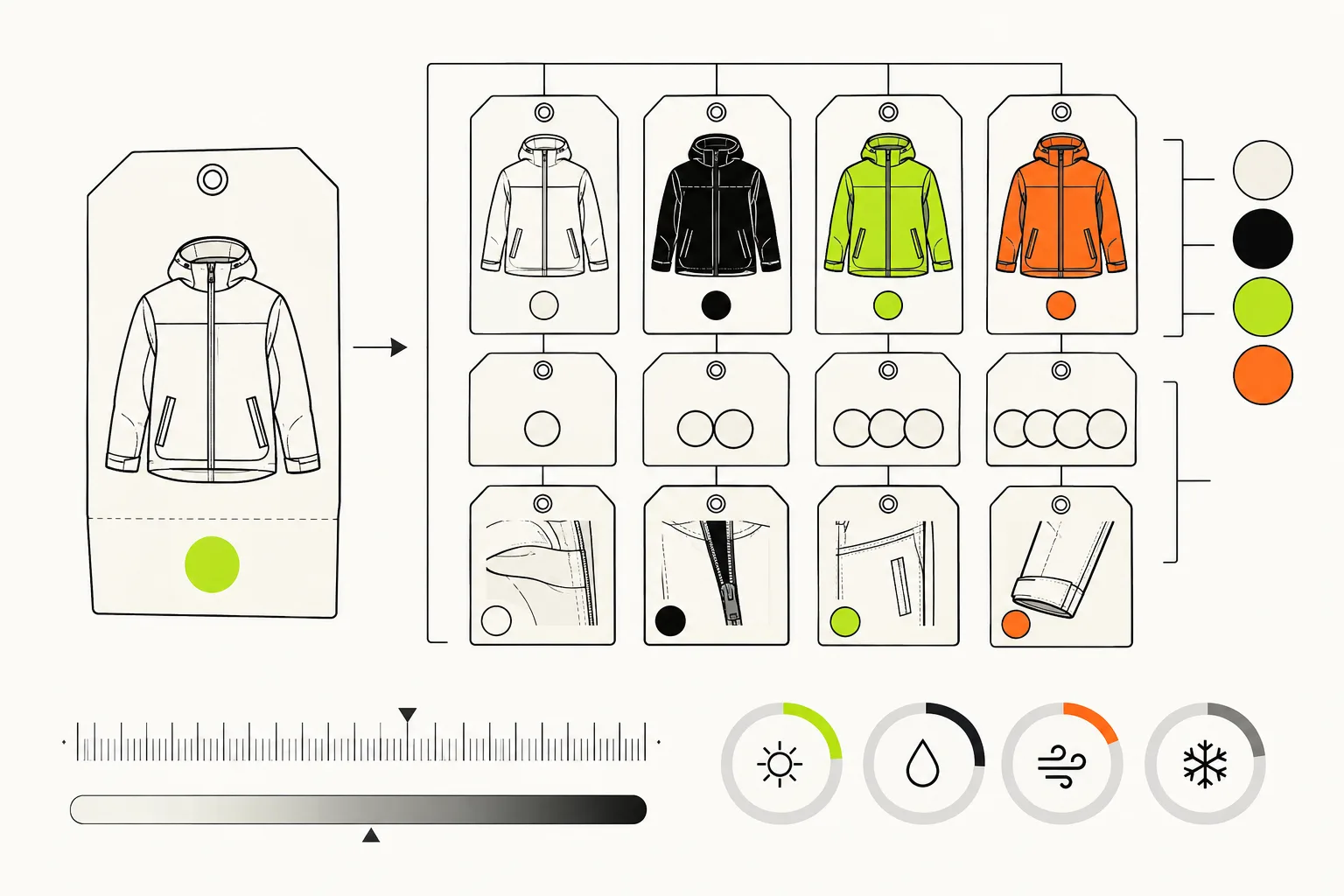
Product-level fields usually include title, handle, description, tags, vendor, product type, status, collections, SEO text, and theme template. These values describe the product as a whole.
Variant-level fields usually include price, compare-at price, inventory, SKU, barcode, weight, taxable status, shipping requirement, and option values. These values can differ inside one product.
A title cleanup across a collection is normally a product task. A price adjustment on selected sizes is normally a variant task. The distinction sounds obvious until a task is built around a vague goal such as “fix the new arrivals.” Naming the field level first forces the workflow to become specific.
Use the product task to prepare the catalog
Product tasks are a good place to make broad merchandising changes. You might add a seasonal tag, change a vendor label, update a product type, move products into a collection, or perform a controlled search-and-replace in titles.
Keep the product task narrow. If you are adding a tag, do not also rewrite descriptions and change the theme template in the same run. Separate tasks make review easier and make the rollback story more obvious.
After a product-level change, inspect the storefront and the admin view. A tag may affect automatic collections. A title change may affect a handle or search result. A status change may remove a product from a sales channel. Product edits can have wider effects than the field itself suggests.
Switch to variant mode when the values can differ
Use a variant task when each option inside a product may need its own result. This is common for price, stock, SKU, barcode, weight, and option cleanup.
For example, a store may need to increase the price of every XL and XXL variant by a fixed amount while leaving smaller sizes alone. That is not a product price change. It is a variant selection and a variant operation.
Ultimator Bulk Editor can search for the variants you need, let you select a focused group, and apply an operation to fields such as price, compare-at price, inventory, SKU, or option values. The tool supports setting values, increasing or decreasing prices, percentage changes, and rounding. The crucial part is making the selection understandable before you apply any operation.
Test the widest and strangest example first
A variant task should be tested on more than one simple product. Pick a sample that includes:
- A product with one variant.
- A product with many sizes.
- A product with colors and sizes.
- A product with uneven prices across variants.
- A product with low or zero inventory.

Apply the intended change to the sample, then inspect the result in Shopify Admin and on the product page. Look for an unexpected outcome: an XL price that is too close to another size, an inventory field that changed when it should not have, an option value that no longer reads naturally, or a product whose variant selector behaves oddly.
The sample is not a delay. It is the fastest way to discover whether your rule matches the real shapes in the catalog.
Keep price updates separate from inventory updates
Price and inventory often travel together in spreadsheets, but they answer different business questions. A sale price is a customer-facing merchandising change. An inventory change is an operational record. Combining them in one task makes it harder to see which decision caused a problem.
If you need to schedule a sale, build a focused price task and prepare a separate restoration task. If you need to correct inventory or SKU values, run that as its own variant maintenance operation. You will have clearer audit notes, cleaner rollback options, and fewer surprises when someone reviews the catalog later.
Use a two-stage review when product and variant work both matter
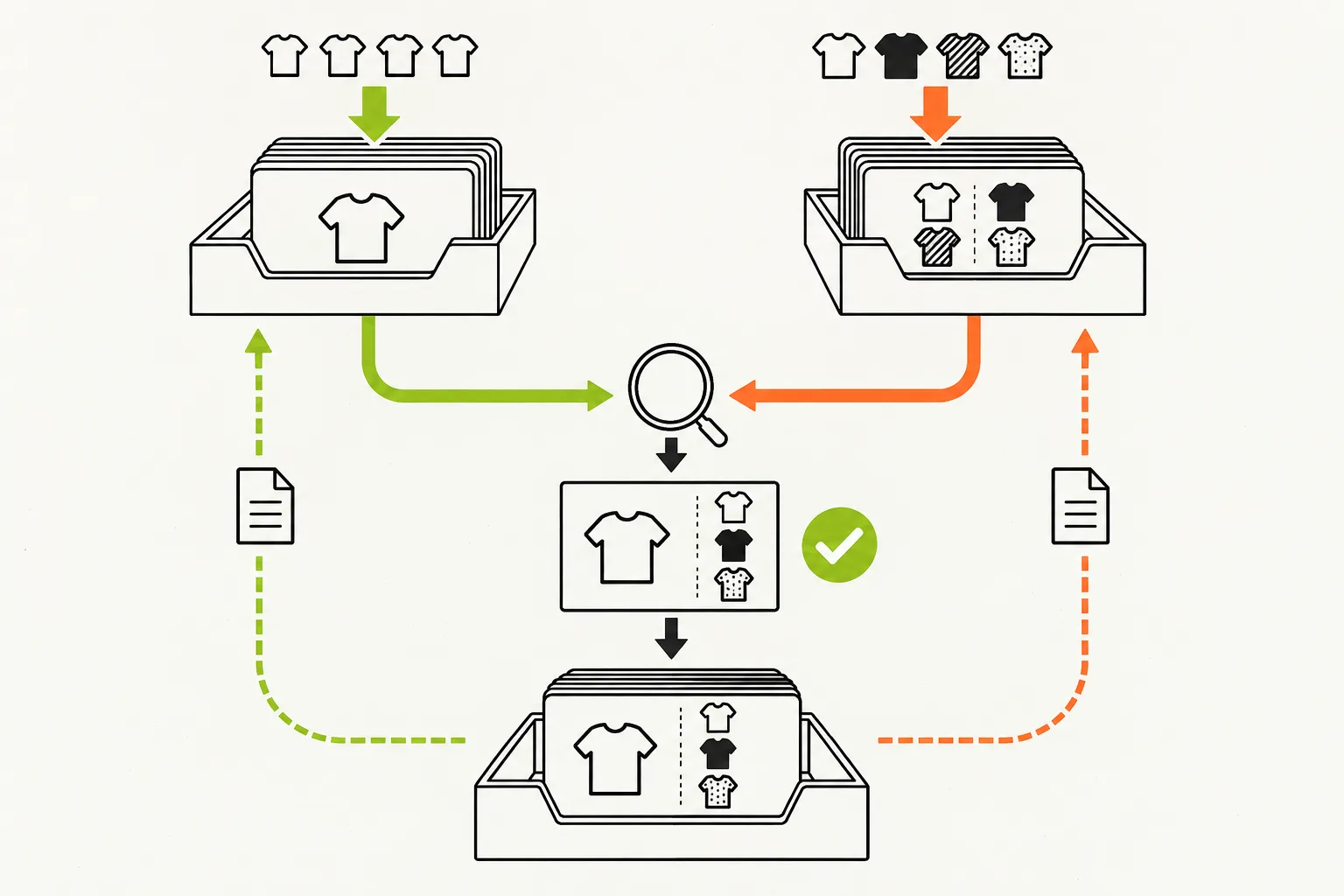
Sometimes a project genuinely includes both levels. You may add a product tag to identify a campaign group, then update the prices of the variants inside that group. Do not make this one opaque task.
Run the product task first. Verify the grouping. Then run the variant task against the verified group. This creates a useful pause: you can confirm that the intended products are in the right segment before money, inventory, or SKU values move.
Field-manual checklist
Before a variant bulk edit, check:
- The target field is genuinely variant-level.
- The selection is based on a rule you can explain.
- A small, varied sample has been tested.
- Price, inventory, and SKU changes are separate tasks.
- A rollback path exists for the field you are changing.
- The storefront has been checked after the sample.
The useful distinction
Product tasks describe the catalog. Variant tasks control the details that shoppers and operations teams depend on inside that catalog. Keeping them separate adds a little discipline, but it makes large edits much easier to inspect, explain, and reverse. Ultimator Bulk Editor gives you both layers; the safer workflow comes from knowing which one you are changing before you press run.