
How to Build a Shopify Product Photo QA Workflow Before You Generate Lifestyle Images
A practical QA workflow for Shopify product photos before turning them into AI lifestyle scenes, try-ons, and campaign assets.
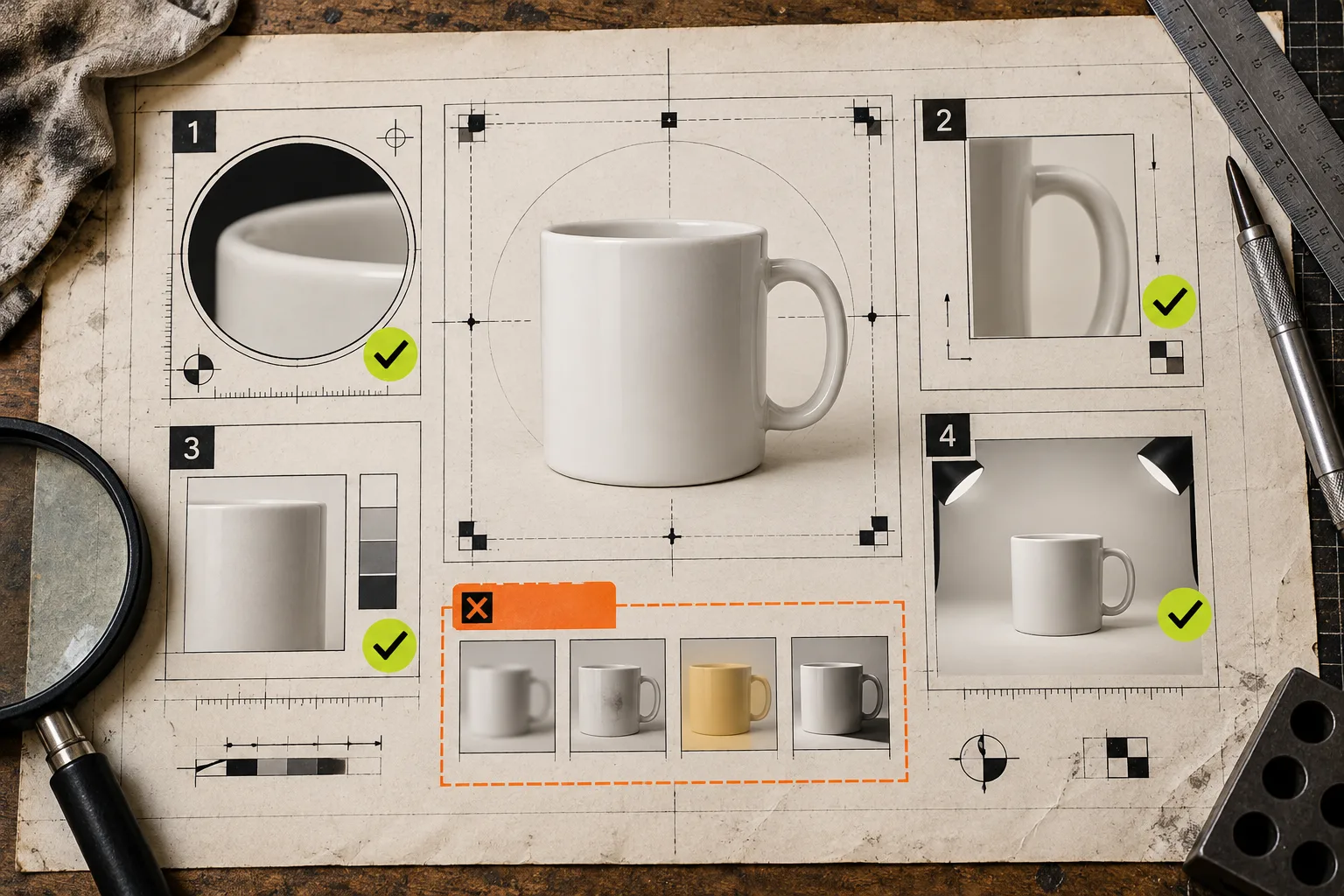
Your product photo is often doing two jobs at once: documenting the item accurately and giving an image model enough clean information to build a believable scene around it. When the source fails at the first job, the second gets expensive fast. You spend more generations correcting weird edges, muted colors, or a product that no longer looks like the one in the listing.
Supra AI Photo Studio is useful here because it keeps several repair and generation tools close to the Shopify product workflow: background cleanup, enhancement, object placement, and try-on. But the useful part is not pressing Generate first. It is running a short QA pass before you generate a single lifestyle image.
The five-minute source-photo check
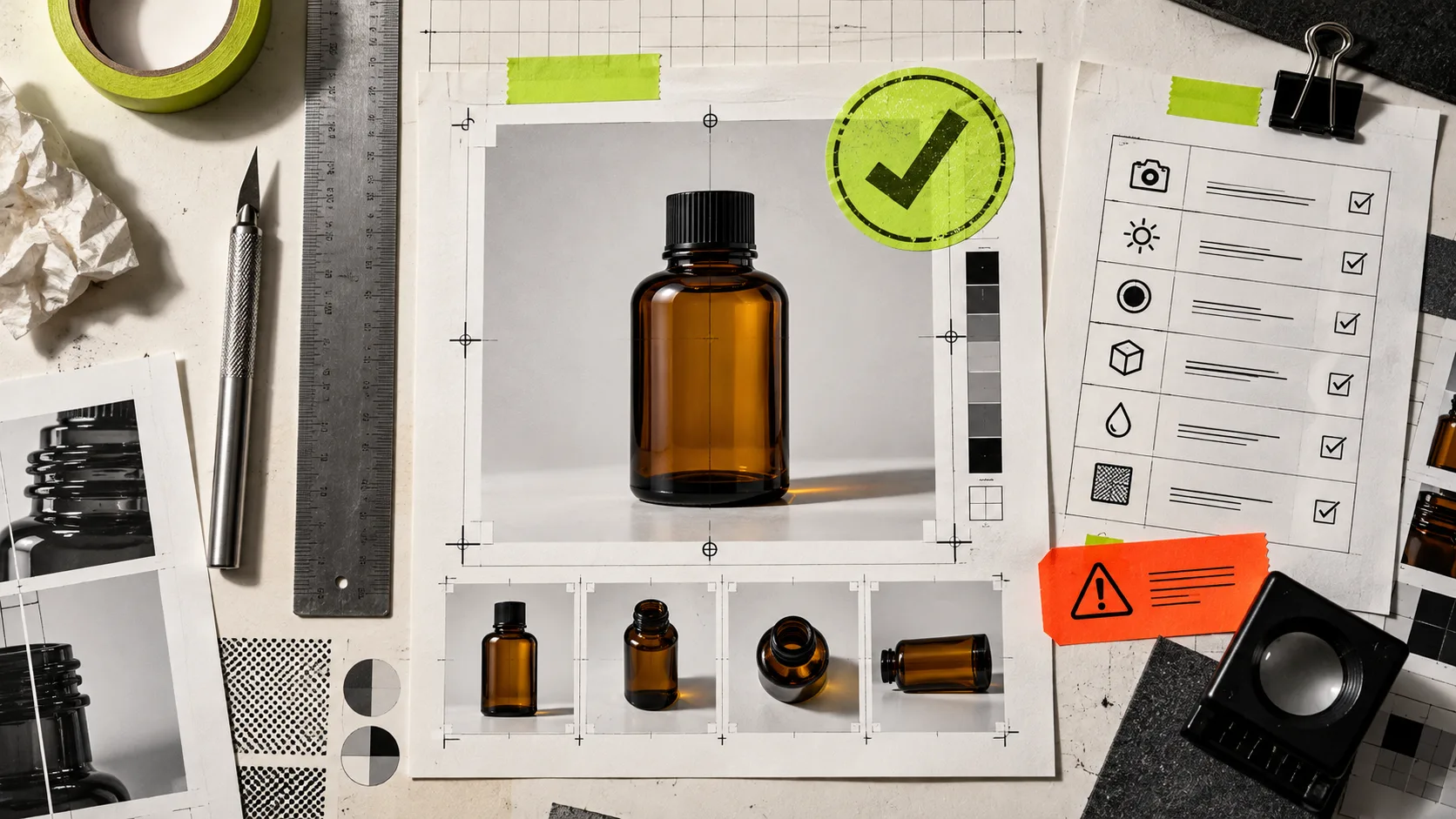
Put one candidate image beside the live product page and check four things.
- Focus: Zoom in on the product’s identifying details: material grain, hardware, seams, labels, and edges. If those details are soft in the source, an AI enhancement may make them look sharper, but it cannot prove what they should be. Start with the highest-resolution, clearest image you have.
- Edges: Look for background-colored halos, cropped corners, and overlap with props. These are the bits that become suspicious cutout lines in a new setting. If you need a clean source, isolate the product before asking for a new scene. The same principle applies when you are refining photo masks in a browser: inspect at the edge, not at thumbnail size.
- Color and lighting: Compare the image to the physical item or a trusted pack shot. Decide which image is your reference for hue, finish, and contrast. Do not mix daylight, yellow room light, and heavy filters in one product set and expect generated scenes to look consistent.
- Product identity: Pick the angle that makes the SKU obvious. A lifestyle image can supply mood later; it should not be responsible for explaining whether a garment has a collar, whether a bottle has a pump, or which colorway is being sold.
This is also where a quick enhancement pass earns its keep. Supra AI Photo Studio offers background removal, resolution and sharpness improvements, and lighting correction. Use them to normalize a usable source—not to turn a poor photo into product evidence.
Make one clean source asset before making variants
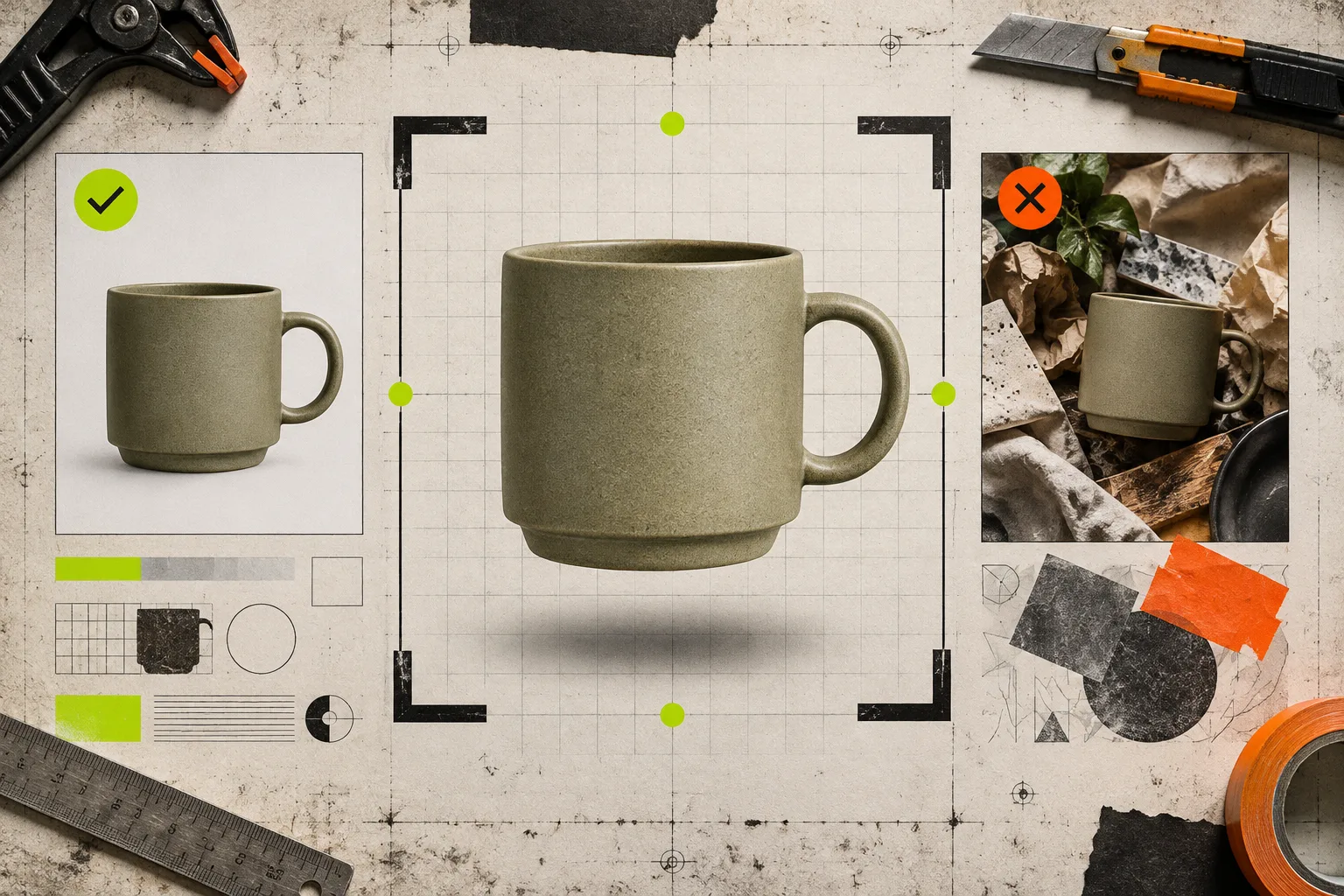
Create a working master for each priority SKU: a clear crop, distraction-free background, consistent orientation, and a filename or Shopify image position you can recognize later. Keep the original image too. The master is your input for scene experiments; the original remains your fallback for product truth.
This small separation prevents a common catalog mistake: overwriting the only reliable product photo with a highly styled version. It also makes approvals faster because the team can compare the source and the output side by side. If your variants depend on color choice, establish the rule first—this guide to Shopify swatch rules for multi-color products is a good companion.
For apparel and accessories, choose the clean master before a try-on. For home goods, cosmetics, or electronics, use the master before object placement. The point is the same: the product should arrive in the generated environment with fewer ambiguities.
Generate scenes with a single decision in mind
A useful lifestyle image answers one shopper question. Where would I use this? How large does it feel? What does it look like on a person? What mood does it support? Give each variant one job.
In Supra AI Photo Studio, that might mean placing a skincare product on a bathroom counter, putting a dress on an appropriate model, or creating a clean studio variation for a collection page. Keep the first prompt or instruction narrow: environment, surface, camera angle, and lighting. Then review whether the result still preserves the product’s shape, color, and relevant details.
Do not ask one image to be a pack shot, a campaign creative, a social post, and a size reference. You will get a confused compromise. For a practical example of separating those roles, see how to use AI product photos on Shopify collection pages without creating a mess.
Add an approval gate before publishing
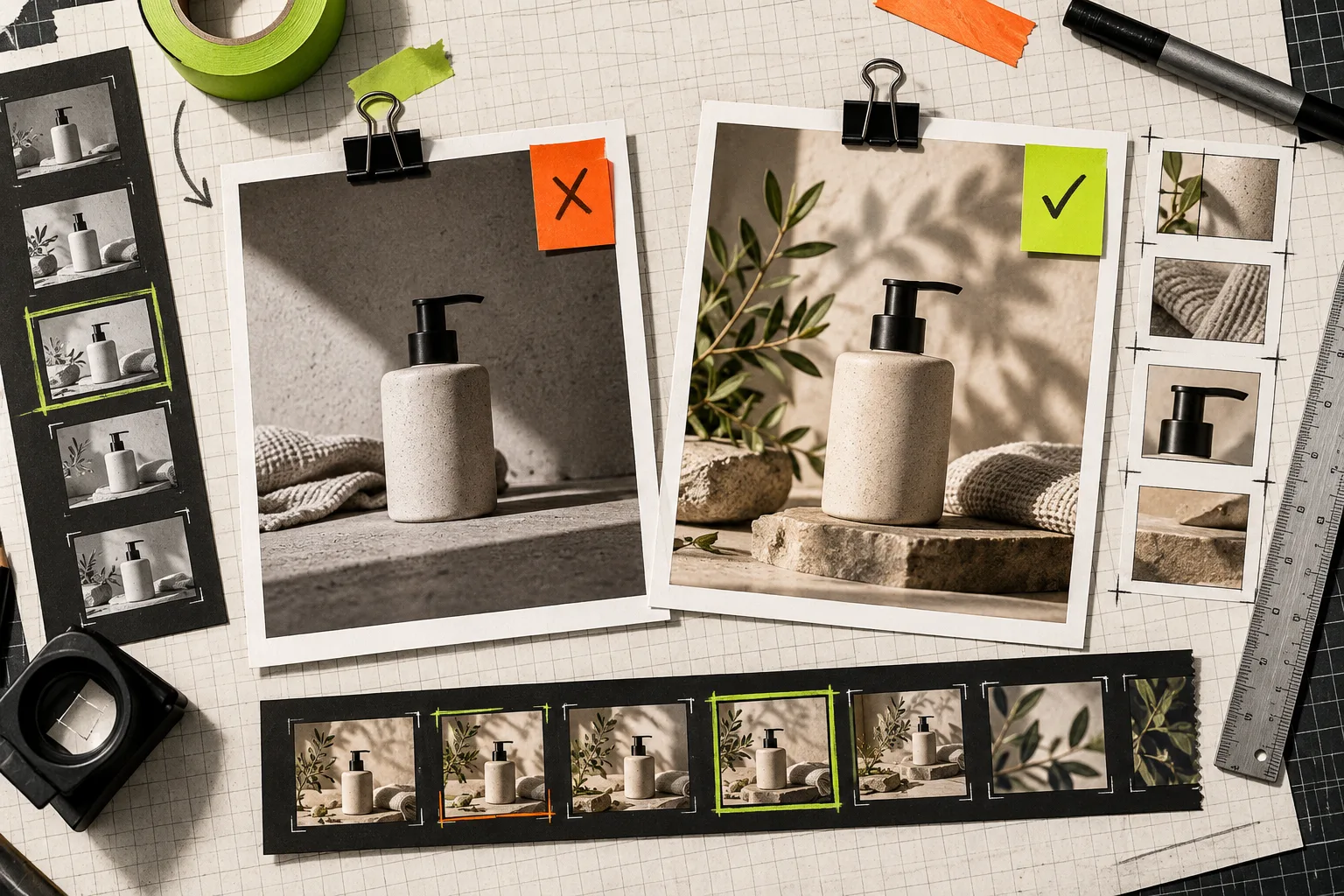
Before publishing a generated image to Shopify, ask the same short set of questions:
- Does the item still match the SKU, color, construction, and key features?
- Is the crop useful in the page location where it will appear?
- Is the setting supporting the product instead of disguising it?
- Does this image add a job the current gallery does not already cover?
- Can a shopper still find at least one straightforward, accurate product view?
Reject outputs that change the product, invent a feature, or make the product difficult to inspect. Keep a small note on the prompt or setup that produced approved assets. That note is more valuable than a huge folder of near-misses when you need the next seasonal variation.
Start with one SKU, then repeat
Pick one product that has a decent source photo and a clear merchandising problem. Create a clean master, produce one scene with a single purpose, compare it against the original, and publish only if it improves the gallery. Install Supra AI Photo Studio when you want those cleanup, try-on, object-placement, and video tools in the Shopify workflow—but let this QA checklist decide what enters the generator.
A better source image does not guarantee a better lifestyle result. It does give you a much more reliable place to start, and it keeps your product pages honest while you test new creative directions.