
PDF Handoff Checklist: Add Bookmarks, Page Numbers, and Extract Only What Matters
Build a client-ready PDF handoff with a focused page set, bookmarks, page numbers, and a quick browser-based quality check.

A client asks for “the PDF,” which sounds easy until the thing you send is a 74-page export with an old appendix, two blank pages, and no way to point someone to a section. That is not a handoff. It is a document-shaped scavenger hunt.
The fix is a short pre-send pass: make a focused copy, make it navigable, then inspect the finished file. I use Tiny Online Tools for this because the relevant jobs are small, browser-based, and do not need a new account or a heavyweight PDF app.
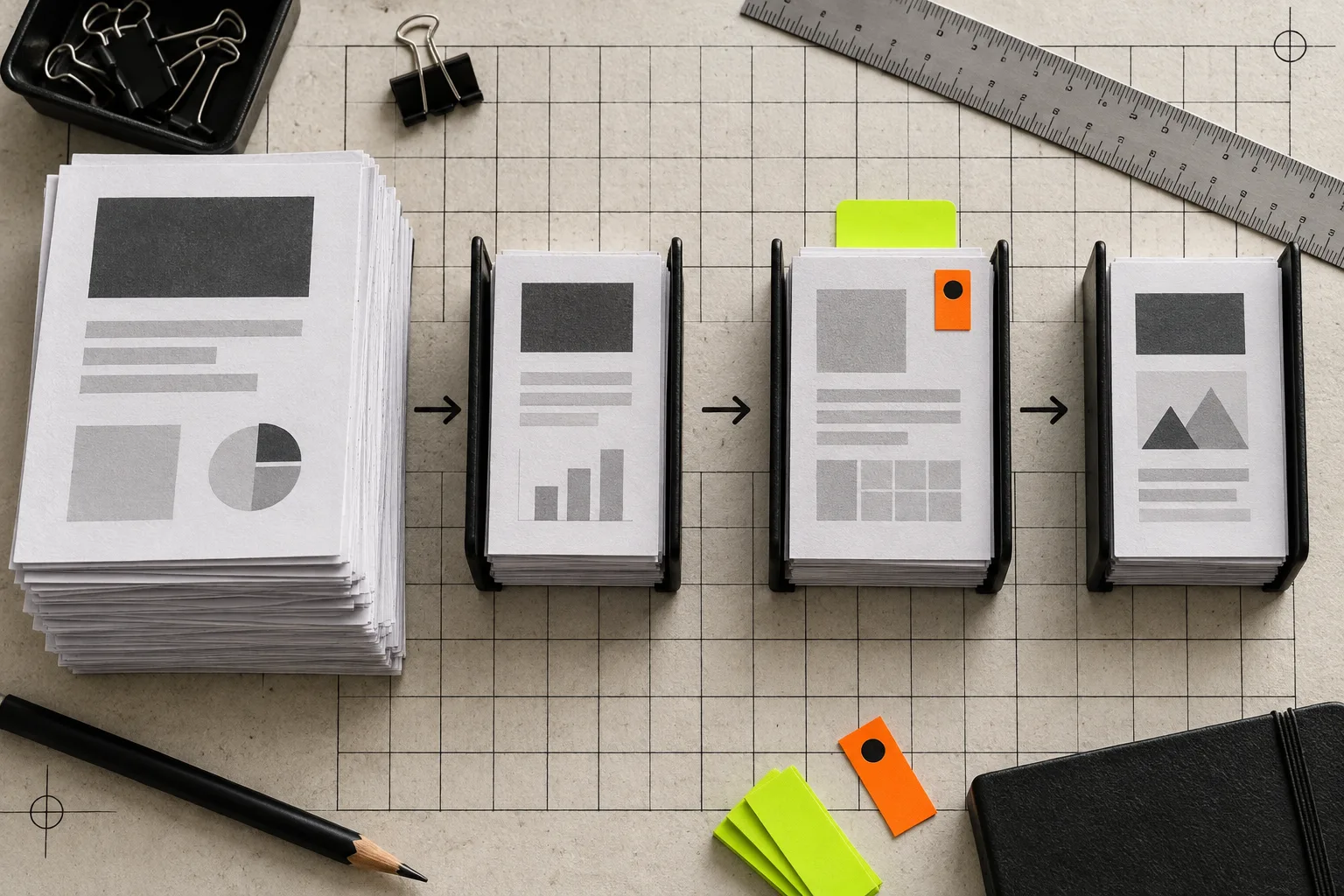
1. Decide what the recipient actually needs
Start with the question the PDF is supposed to answer. A client implementation guide may need the overview, key screens, decisions, and reference appendix. It probably does not need working notes, five discarded concepts, or an internal budget page.
Write down the page ranges before touching the file. That tiny bit of discipline prevents the classic mistake: removing the cover but leaving its page number in the table of contents. If the final handoff is a subset, use Extract PDF Pages to make a separate deliverable rather than editing the only copy. Keep the source PDF untouched.
This is also the right moment to spot material that belongs somewhere else. A spreadsheet export should be cleaned before it becomes an appendix; this CSV cleanup guide covers the same principle from the data side. The deliverable should be short enough to use, not merely complete enough to defend.
2. Add bookmarks when readers will jump around
Bookmarks are for people who will not read from page one to page seventy-four. Use them for sections a client is likely to revisit: project overview, approved direction, implementation notes, asset inventory, and next steps.
PDF Outline Editor is the useful tool here: add or edit the PDF’s bookmarks, then make the labels describe destinations rather than vague categories. “Homepage — approved desktop layout” beats “Designs.” “Checkout caveats” beats “Notes.”
Do not manufacture a complicated hierarchy for a ten-page document. A good rule is that each bookmark should save a real scroll. If a reader would never use it, it is just navigation furniture.
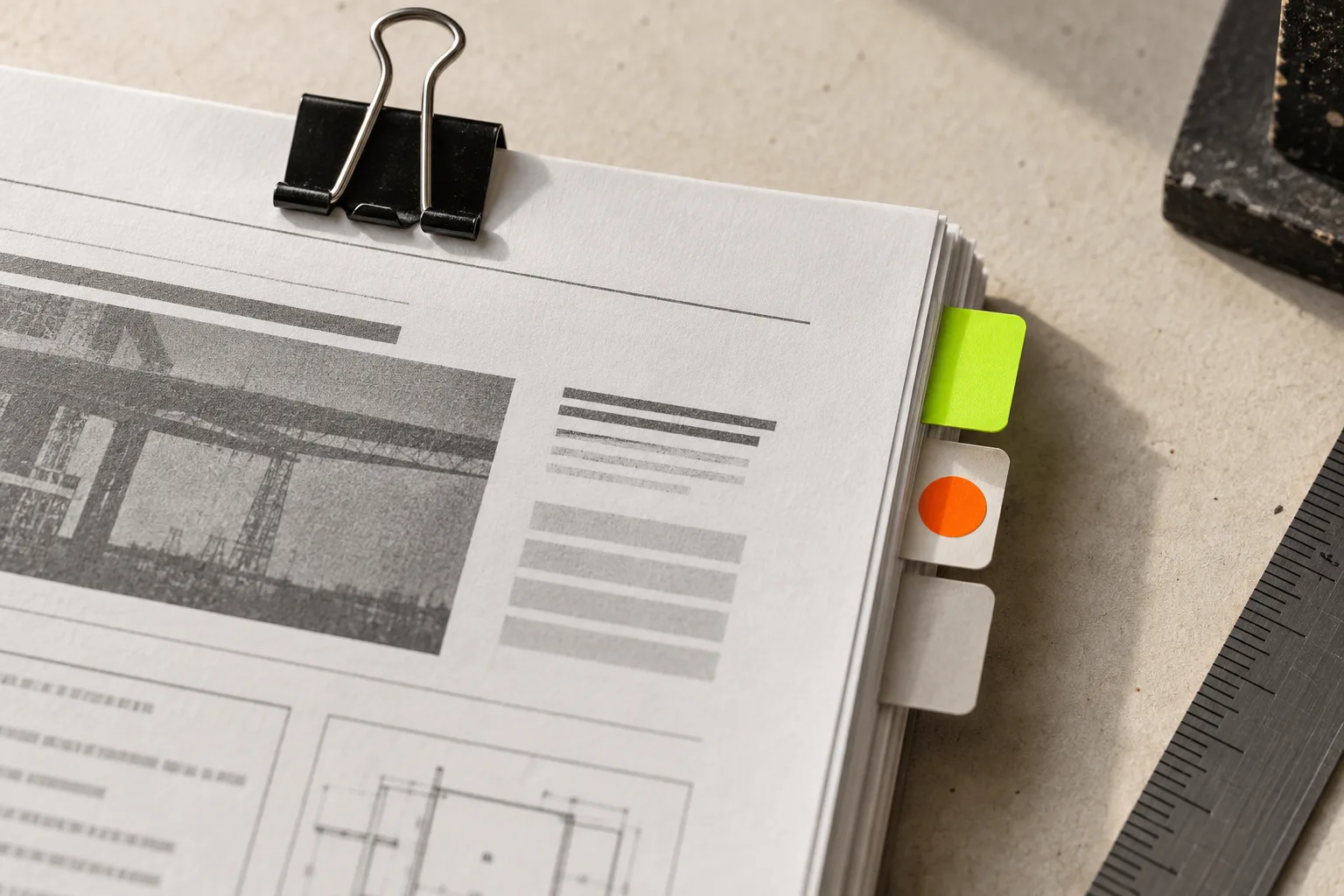
3. Add page numbers for conversation, not decoration
Bookmarks help a reader find a section. Page numbers let two people discuss it without guessing. “Look at the final note on page 12” is a surprisingly durable form of project management.
With PDF Page Numbering, choose the position, format, size, and starting number before downloading the finished version. For a client handoff, lower-corner numbers are usually the quietest choice. A cover that should stay clean can be excluded by extracting the body, numbering it, then combining the parts with Merge PDF.
There is one caveat worth keeping: page numbering cannot rescue a confusing document. If the document changes after you create bookmarks or a table of contents, check the destinations and references again. Navigation is part of the deliverable, not cosmetic finishing.
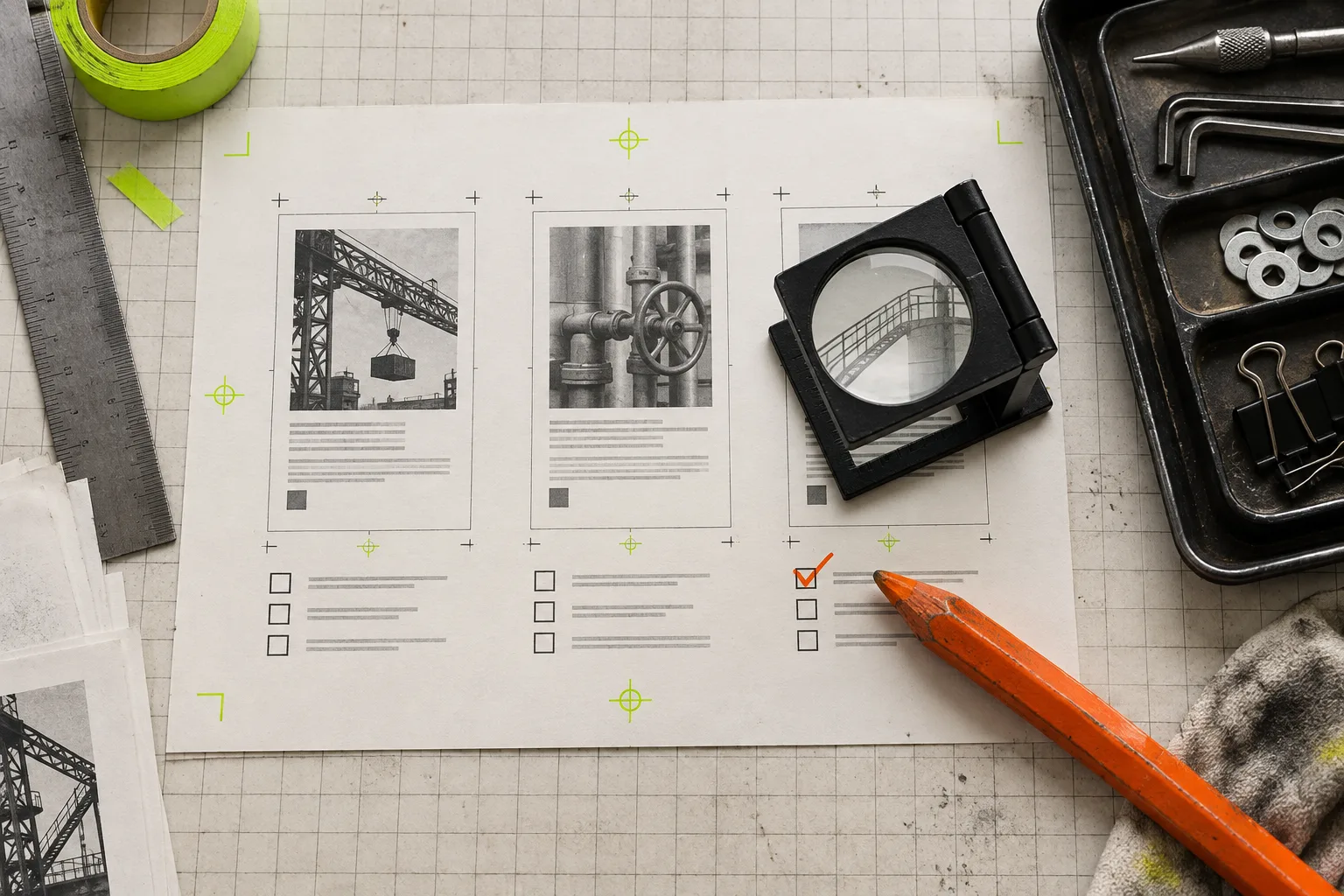
4. Run a two-minute recipient test
Before sending, open the downloaded file in a normal PDF viewer—not the editor you used to make it—and do four checks:
- Click every top-level bookmark.
- Jump to three page numbers mentioned in the body.
- Scan the first, middle, and last page for accidental blanks, clipped footers, or duplicated pages.
- Confirm that the filename makes sense outside your Downloads folder.
This is the document equivalent of testing a static-site export before client handoff: the workflow in this Framer handoff guide is different, but the final-reader test is the same. A file can be technically produced and still be awkward to use.
5. Send one clear next action
Your handoff note should say what is in the file and what you need back. For example: “Attached is the 18-page implementation pack. Use the bookmarks for sections; please confirm the three open decisions on pages 6, 11, and 15.”
That message is better than “Here is the PDF” because it turns a passive attachment into a review task. If the handoff also includes screenshots, make those files equally reviewable; this screenshot-preparation checklist is a useful companion.
The whole workflow is modest: select the right pages, add a useful outline, number the version people will discuss, and open it once as the recipient. But it removes the friction that makes clients postpone feedback. Start with your next long export, and make the PDF easier to navigate than it was to create.