
How to Retire Shopify Products in Bulk Without Hiding the Wrong Items
A practical, low-risk method for scheduling Shopify product retirements with clear selection rules, a small test, and a post-run check.
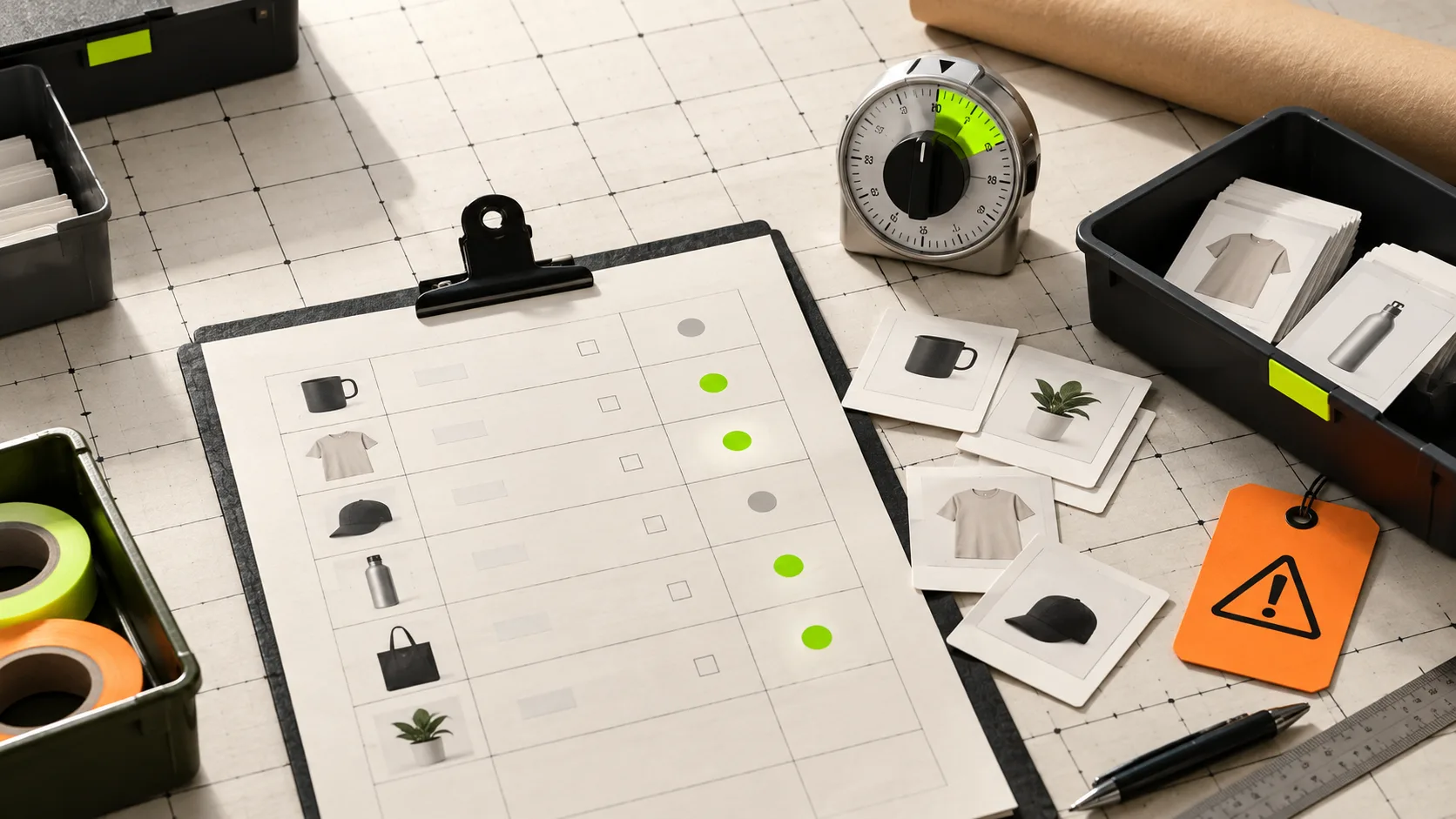
Old products have a bad habit of staying visible long after they have stopped being sellable. A seasonal SKU runs out, a supplier drops a line, or a replacement takes over—then the old page keeps appearing in search, collections, and customer support tickets. The tempting response is to select everything that looks stale and make one giant status change. That is how a useful catalog tool becomes an expensive hiding machine.
A better approach is to treat retirement as a controlled catalog task: define the selection, change one field, test a small cohort, then schedule the full run. Ultimator Bulk Editor is well suited to this job because its workflow starts with search criteria, lets you apply a field-level update to products or variants, and can run immediately or at a scheduled time.

Start with a retirement rule, not a hunch
“Not selling recently” is a useful signal, but it is not a complete selection rule. A product might be slow because it is a spare part, a preorder, a bundle component, or a seasonal item that will return next year. Before touching status, write a short rule that another operator could apply without guessing.
For example: retire products from the Spring 2025 collection that have zero inventory, are not tagged keep-live, and are not used as replacement landing pages. The exact rule will differ, but it should name the source group and at least one exception. Keep replacement products out of the task until you are sure their pages are ready.
This is also the moment to separate product decisions from variant decisions. If the whole item is gone, product status is the right lever. If only one size or color is unavailable, that is a variant-level question. The practical test is simple: would hiding the entire product page disappoint a customer who could still buy another variant? If yes, make it a separate variant task. This guide on when variant bulk edits deserve their own task is a useful companion.
Build a small hold list first
A hold list is cheap insurance. Add the handles or a dedicated tag for products that must remain available: active ads, wholesale-only lines, products promised in campaigns, or pages that support a newer replacement. You do not need an elaborate approval process; you need a visible exception list.
Then preview the selected set in sensible chunks. Scan for three things: surprise bestsellers, products with healthy inventory, and product families where one live child would be hidden with the rest. If the selection contains a surprise, fix the criteria instead of manually unchecking dozens of rows. The next person running the task should get the same safe outcome.
Make one scoped status change
Create a new bulk update task in Ultimator Bulk Editor and use the search criteria to select only the retirement group. Set the update to the relevant product status value. Resist the urge to also rewrite titles, remove tags, alter SEO, or change prices in this task. Those are valid follow-up jobs, but combining them makes it much harder to prove what happened and to recover from a bad selection.
That separation is especially useful if your cleanup includes tags. A task for status answers “is this product available?” while a task for tags answers “how should this product be classified?” Keep those questions independent; here is a practical reference for updating Shopify product tags without breaking a catalog.

Run a five-product pilot
Take five ordinary products from the intended selection—not five hand-picked easy cases—and run the status change on just those. Check the storefront as a customer would: the product page, a collection where it appeared, search, and any direct link you know is still in circulation. Also check the admin record to confirm the expected status is the only intended change.
Why use a pilot if the tool can process unlimited products? Because scale does not make an ambiguous rule safer. A tiny run reveals whether your criteria include replacement pages, variants, or a collection you forgot about. It also gives your team an unexciting, repeatable review pattern.
Schedule the full task at a quiet time
Once the pilot is clean, schedule the same scoped task for a quiet operational window. Scheduling is not merely a convenience: it gives you a moment to reread the criteria, notify anyone who owns promotions, and line up the person who will inspect the outcome. Put the expected product count and the task purpose in your change note.
If prices are changing nearby, do not include them in this retirement task. Price logic has its own failure modes—especially when variants and compare-at prices are involved. Use a separate run and the checks in this Shopify bulk price preflight checklist.
Verify the outcome, then clean up deliberately
After the scheduled task finishes, verify a small sample from three places: the admin, a former collection, and the public storefront. Include one product that was near an exception boundary. If you find a selection error, stop and correct the criteria before running anything else. Do not paper over it with a second broad task.

Only after the status change is confirmed should you decide what comes next: redirect old traffic, remove stale merchandising, archive supporting media, or update internal notes. For a larger cleanup that needs different field-level changes, this field note on splitting a Shopify catalog cleanup into reversible tasks shows why one-purpose runs are easier to review.
The useful default
Retiring products in bulk should feel a little boring: one clear rule, a hold list, one status field, a small pilot, a scheduled run, and a measured check afterward. That is the point. It turns a stressful catalog sweep into an operation you can explain and repeat.
When you are ready to replace manual clicking with a scoped task, install Ultimator Bulk Editor and begin with the smallest selection that proves your rule.