
How to Plan Shopify Product Tabs Around Shopper Decisions
A practical way to organize Shopify product tabs and mobile accordions around the decisions shoppers need to make.

A long Shopify product page usually does not have a writing problem. It has a decision problem. A shopper is trying to answer a few practical questions—will this fit, is it compatible, what care does it need, when will it arrive—and the answers are often buried in one continuous description.
The fix is not to put every sentence behind an arbitrary tab. Start by grouping information around the decision it helps a shopper make. That gives desktop visitors a scannable set of tabs and mobile visitors a short stack of accordions without making essential details harder to find.
Supra Tabs & Accordions is a free Shopify app for exactly this presentation problem: build a tab set once, target it across a catalog, and add a single theme app block to the product template. It changes how existing information is organized; it does not replace the content underneath.

Start With the shopper’s next decision
Before naming a tab, collect the questions that stand between a visitor and the Add to cart button. A useful first pass is usually three to five decision groups:
- Fit, size, or dimensions: measurements, materials, capacity, and what is included.
- Use, care, and ownership: ingredients, setup, washing, battery care, warranty, or returns.
- Compatibility and confidence: model fit, shipping timing, installation requirements, safety notes, and the edge cases that cause hesitation.
Do not make a tab for every source system. “Metafield” and “metaobject” describe where information lives, not why someone is looking for it. A shopper cares about “Size and fit,” not whether a measurement came from a structured field.
This also exposes content that should stay prominent. The core product description, a price-changing condition, or a product-specific warning should not be tucked into a generic “More” section. The goal is faster scanning, not a cleaner-looking way to hide consequential details. If your catalog has already separated products into meaningful fit groups, the same logic supports a clearer Shopify size-chart split by fit family.
Turn the groups into labels shoppers recognize
Good tab labels are short, concrete, and predictable. “Details,” “Size and fit,” “Care,” “Shipping and returns,” and “Compatibility” make a promise readers can test immediately. Labels such as “Info,” “Discover,” or “Our commitment” require interpretation before they help.
Use this small test: can a shopper tell which label answers their question without opening all of them? If not, rename or split it. For a product with multiple colors or materials, keep visual-selection rules close to the choice itself and reserve a product-content tab for information that remains true after selection. That distinction is especially helpful when you are building Shopify swatch rules for multi-color products.
A practical tab set for apparel might be: Details, Size and fit, Fabric and care, Shipping and returns. For a technical accessory, it may be: Overview, Compatibility, Specs, Setup, Support. The labels differ because the decisions differ.

Use the same information, not the same layout
Tabs can work well in a wide product-page column because they let a reader compare related sections without a long vertical interruption. On a narrow column, accordions are often easier to tap and review one section at a time. The important part is that both views expose the same headed content.
Supra Tabs & Accordions responds to the real product-page column, not just the viewport. You can choose whether overflowed tabs scroll, wrap, stack, or move behind a More control. It also includes keyboard support, comfortable tap targets, appropriate roles, reduced-motion support, and direct links to a specific tab.
Test the content structure at both widths before treating the job as finished:
- Open a long-name product on desktop and make sure tab labels do not collide or disappear.
- On mobile, check that the first meaningful accordion is visible and each section has a comfortable tap target.
- Open a product missing one optional field and confirm an empty section does not leave a dead tab behind.
- Use the keyboard to move through the controls and verify that headings still explain the content.
Empty tabs in Supra hide automatically when a product has no matching content, which is useful when a single tab set covers a varied catalog.
Reuse shared copy carefully across the catalog
Policies, care guidance, and warranty language are strong candidates for reuse. Product dimensions, compatibility, and included parts are not. Build one tab set from a mix of shared pages or written content and product-specific descriptions, metafields, or metaobject entries. Then target it by collection, tag, vendor, product type, or selected products.
That gives you a maintenance win without asking every SKU to look identical. A collection or tag rule can keep covering products added later, while a specific-product rule handles a special case. Treat those rules like any other catalog automation: document the intended match set and inspect it before expanding it. The same sample-first discipline makes a Shopify tag cleanup safer to test.
Add an overlap check before publishing
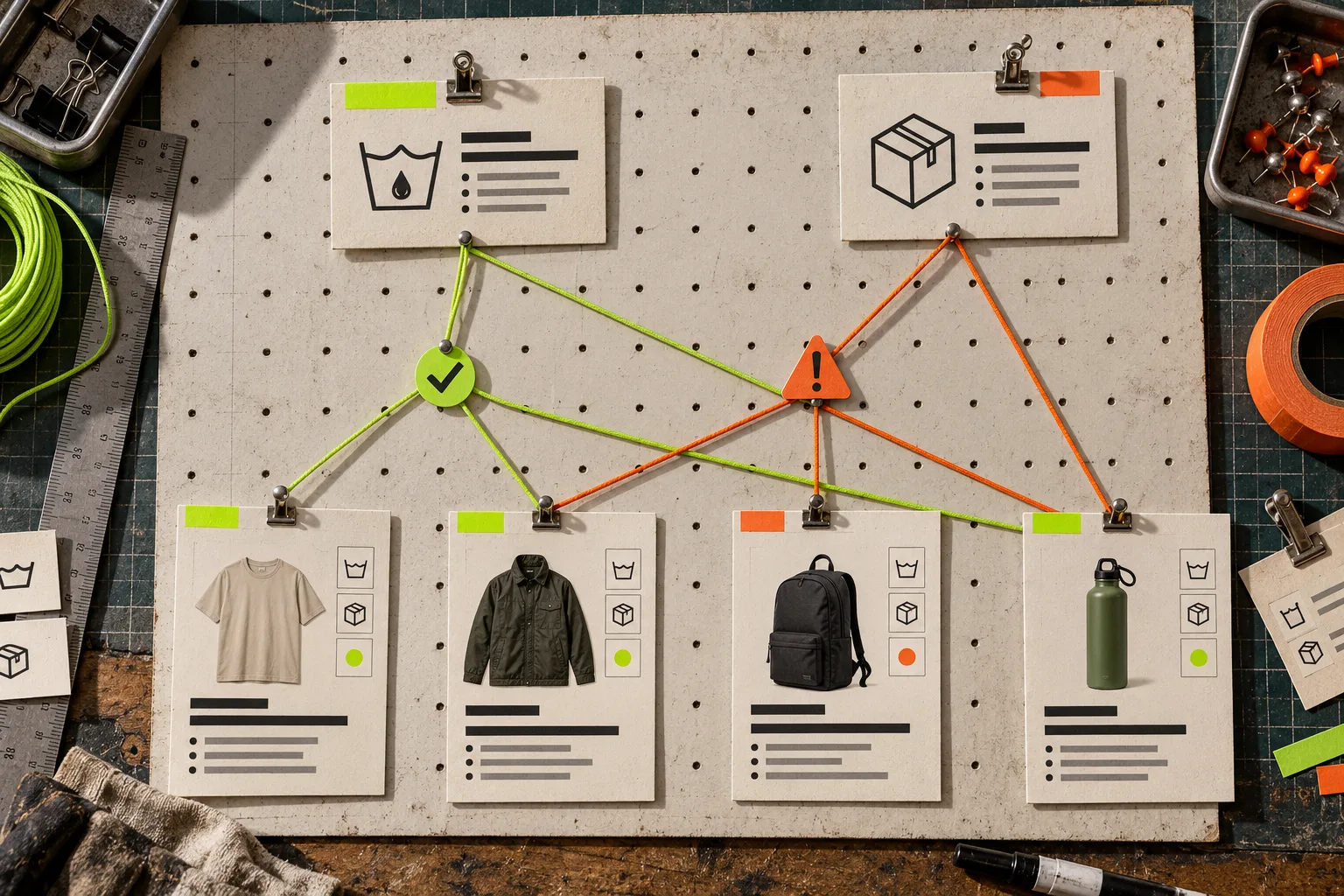
Rule-based product content becomes confusing when two tab sets claim the same product. Review the live product preview, match count, and overlap warnings before you publish. If two rules overlap, decide which one should win and make that decision explicit; do not leave it as an accidental side effect of setup order.
For a cleaner rollout, use a small pilot collection: one straightforward product, one product with missing optional content, and one exception product. Confirm the order, labels, source content, mobile behavior, and any direct tab links. This is the same useful mapping exercise behind planning product details before adding tabs, but the final check is about how a real shopper encounters the result.
A simple next step
Pick one product family this week. Write down the three decisions a buyer must make, map each existing content source to one decision, and remove any label that cannot pass the scan test. Then build the tab set in Supra Tabs & Accordions—it is free, with no trial, tiers, or card requirement—and add the app block once to your Shopify product template.
The best product tabs do not add decoration. They make the next useful answer easy to find.